Showing posts with label samsung galaxy Y. Show all posts

Saturday, January 7, 2012

How to Use MP3 Music Files as Ring Tone in Samsung Galaxy Y

The sound settings of Samsung Galaxy Y does not automatically add your existing music files from the selection list of ring tones. Only the default ring tones are listed and there is no option for you to browse for existing music files in your smartphone.

To add your music files into the selection list, you will need to create a ringtone folder. Once you create that particular folder and loaded it with your MP3 music files, the system automatically detects it and adds the MP3 files into the selection list of ring tones in addition to the default ones.

The step by step procedure is outlined in the following screenshots from my own Samsung Galaxy Y:

1. Tap on "My Files".


2. Tap on the menu key (left side of the home button) and select "Create Folder" in the pop-up.


3. Name your new folder "ringtones" and tap OK.


4. Navigate to your SD card contents and tap on the "mp3" folder. In my case that folder is where I store my MP3 music files. If you have your own folder where you store your music files, that is what you will select or tap.


4. Select the tune that you would like to use as ring tone.


5. Tap on the menu key and select copy from the pop-up box.


6. Open the "ringtones" folder that you have just created.


7. Tap the menu key and select "Paste here".


8. The MP3 tune is now inside the "ringtones" folder.


9. Navigate to your home screen and select "Settings".


10. Tap on "Sound".


11. Tap on "Phone ringtone".


12. That's it. Your selected MP3 tune is now included in the selection list of ring tones. click on OK to use the file as ring tone. Just repeat the process the add more MP3 files  in your ring tone selection list.
 

Tuesday, October 25, 2011

Use your Samsung Galaxy Y as Internet Access Point

One of the cool features of the Samsung Galaxy Y that is not to be found in other and older Galaxy smartphones in its class is the ability to share it's 3G internet connection to other Wi-Fi enabled devices like laptops, tablets and smartphones. This feature is commonly found on higher end Samsung Galaxy tabletss and smartphones but it is a nice treat from Samsung to have it included in this entry level Android phone.

I had a previous post of similar topic in this blog but that one deals with the Samsung Galaxy Tab. Since the naming of the feature in the menu is vastly different from that of Samsung Galaxy Tab, I took the liberty to post this one specifically for the Samsung Galaxy Y.

Having a personal Wi-Fi hotspot in your possession wherever you go offers lots of convenience to people who prefer using their laptop in browsing the internet and reading and sending email, in the absence of Wi-Fi access points in their location or even at home without regular internet  connection.

Once you activate the feature, other people can connect to your Samsung Galaxy Y and use its 3G internet connection to browse the Internet. The only downside of this feature is the maximum number of concurrent users which is set to 5 only.

To make sure that only people whom you authorize to connect will be able to use the service, you have the option to set WPA-PSK security in your device. meaning, you can set a passphrase or password which you can share with your users prior to connection just like in a dedicated Wi-Fi router/access point.

The procedure is very simple and outlined below:

1. Go to "Settings" and tap on "Wireless and Networks",


2. Tap on "Tethering and portable hotspot",


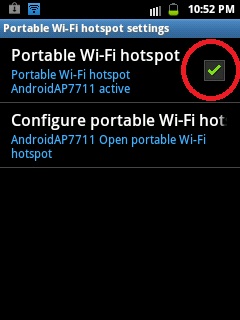
3. Tap to check the "Portable Wi-Fi Hostspot",

4. As soon as you see the "Portable Wi-Fi- hotspot AndroidAP7711 active" below the "Portable Wi-Fi hotpsot, you and your users can already connect to the Galaxy Y Access Point using your various devices but in this instance, the connection is "Open" and unsecured. What you have to do to enable security is  tap on the "Configure Portable Wi-Fi hotspot" after which you will have the option of setting your own Network SSID or leave the default "AndroidAP7711". Click on "security" below the Network SSID and choose WPA2 PSK in the dropdown list. Input your password or passphrase and you're good to go.


 By the way, before you do the above-mentioned things, make sure that your phone has enough load credits if you are on prepaid cellular service and that your network's APN is properly configured to browse over 3G. If you can browse the internet on your Galaxy Y prior to setting up the Access Point, then you will have no problem. If you cannot access the internet, check on your 'Mobile Networks Settings" and see if the "Use Packet Data" is checked or activated. This setting determines your phones capability to access the internet given enough  load credits and proper APN configuration.

In my case, prior to doing these things, I subscribe first to a day's unlimited internet with my Mobile Network or cellular provider to enjoy unhampered browsing with my pals and family members.

Wednesday, October 12, 2011

Samsung Galaxy Y Unboxing and First Impressions

True to my intention to get one of this latest budget smartphone from Smart Philippines, herewith the unboxing and first impression photos of the Samsung Galaxy Y. I did not expect to get the unit right away last night because I was expecting the release date of said device to be on October 15 onwards as indicated on the online reservation confirmation from smart Philippines. Of course I was so glad and excited because the early release was a big surprise for me. Thanks to the friendly customer manager who handled my application and account.

At first glance of the Samsung Galaxy Y you would mistake it for the Samsung Galaxy Ace if not for the small size. The curves, shape and all really resembles the Ace. One thing thing I particularly noticed about the Galaxy Y is the plasticky feel and the super light weight but I am not complaining because this is a budget Smartphone after all. Being satisfied with its touch and feel after a few minutes of tinkering, I immediately forgot about my first qualm. On one side though, there is something in the Galaxy Y that you should be very careful about if you will buy this latest device from Samsung. Even though the back side is textured, the unit easily slips in the hands and I almost dropped it thrice on my first 10 minutes with it. Better to buy an accessory protector that would encase it because one "almost dropped" slippage could send your device to the floor in many pieces.

First experience with the Android Gingerbread in the Galaxy Y is superb, so smooth, no lags, very responsive and the volume is loud enough to enjoy music and videos from Youtube. Internet browsing is such a joy in the Galaxy Y if not for the smallish screen, again no complaints. The bundled Quickoffice application is a very nice treat also as I was able to immediately read my documents.

Until the full review, check out the unboxing photos and a closer look at the Samsung Galaxy Y.


Sunday, October 2, 2011

Free Samsung Galaxy Y from Smart Philippines


I ran across a full page ad in a major newspaper from Smart Philippines and I was delighted with what I saw. Smart is offering would-be Android users easy way to have one easily at a low cost or for free. For data lite plan 500, you can have the Samsung Galaxy Y for free. Smart is offering this new Galaxy phone from Samsung through it's Netphone brand which they have launched just a few months back. This is the second Android device that Smart's netphone series is offering in addition to the original (unbranded) Netphone which I have also featured in an earlier post. The cost of this new offering is twice as low than the originally launched Netphone making it very attractive for first time Android users. Being low cost at only Php5,990.00 (US$ 137.00) we cannot expect it to have any feature like high megapixel camera or gorilla glass display. It's camera is only 2MP, lower than the Samsung Galaxy Mini's camera. On the processor side however, its 832 Mhz CPU trumps the Mini's 600 Mhz. Other than the processor and Android Gingerbread version of its OS, the Galaxy mini is still superior. Having said that, I'm still ordering one due mainly to the price point which for me is affordable and being a Samsung fan, I will add it to my growing collection of Samsung gadgets.
You can pre-order this from Smart Philippines' website. Note: The author is not affiliated with Smart or any other mobile telecom company. He is just happy to share with Android fans and enthusiasts anything he finds anywhere that is related to Android stuff.